To track inventory on Shopify, turn on Track quantity for each product or variant, choose an inventory policy that decides whether it keeps selling at zero stock, and assign quantities to your store locations. Shopify then counts stock down automatically as orders come in. That covers a single store; selling across channels or warehouses usually calls for a dedicated inventory system on top.
How to Track Inventory on Shopify (Short Answer)
To track inventory on Shopify, open each product, enable Track quantity on the product or variant, then set its inventory policy to decide whether the product can keep selling at zero stock, and assign quantities to your store locations. Shopify then counts stock down automatically as orders come in and hides or flags items that run out.
That built-in tracking is enough for a single store with simple needs. Once you are selling across more than one channel, running multiple locations, or you need automated reordering and order routing, you connect an external system on top of Shopify to keep stock in sync everywhere. See our multi-channel inventory management guide for how that sync works in practice.
How to Enable Inventory Tracking on Shopify (Step by Step)
These steps follow Shopify's standard admin. Exact labels can shift slightly between themes and plans, but the flow is the same.
- Open the product. In your Shopify admin, go to Products and click the product you want to track.
- Find the Inventory section. Scroll to the Inventory area of the product page. If the product has variants (sizes, colors), each variant has its own inventory section.
- Turn on Track quantity. Check Track quantity (older themes label this "Shopify tracks this product's inventory"). This is what tells Shopify to count stock up and down automatically.
- Set the inventory policy. Choose what happens at zero stock: Stop selling when out of stock, or Continue selling when out of stock (used for backorders or made-to-order items).
- Enter quantities by location. Add the available quantity for each location you ship from. Stores on plans without multiple locations will see a single location.
- Save. Repeat per variant where needed. Shopify now decrements stock as orders are placed and reflects it on the storefront.
If you would rather set quantities in bulk, the same fields are editable from Products > Inventory, and Shopify supports a CSV import to enable tracking and load quantities across many products at once instead of editing each by hand.
What Shopify's Inventory Policy Actually Does
The inventory policy setting controls one thing: what Shopify does when a tracked product hits zero available stock. It has two options.
- Stop selling when out of stock. Once available quantity reaches zero, the product (or variant) shows as sold out and customers cannot add it to cart. This protects you from overselling stock you do not have.
- Continue selling when out of stock. The product stays buyable below zero. Use this for backorders, pre-orders, made-to-order goods, or items you can always fulfill. It will let the available count go negative, so it relies on you to actually have or replenish the stock.
Inventory policy is set per variant, not just per product, so the same product can stop selling in one size and keep selling in another. It is separate from Track quantity: if tracking is off, Shopify never counts the product down and the policy has nothing to act on.
Where this gets harder is across multiple locations. Shopify tracks stock per location, but it does not decide which location should fulfill an order for you, and a "continue selling" item at one location can mask a real stockout at another. If you run more than one warehouse or store, see multi-location inventory management on Shopify for how location-level stock and routing fit together.
What Shopify's Built-In Inventory Tracking Covers
Shopify's native tools handle the basics well for a single store:
- Quantity tracking per location. Each tracked variant carries an available count per location, and Shopify counts it down as orders are placed.
- Bulk editing and CSV import. The Products > Inventory page lets you adjust quantities across many products at once, and a CSV import can enable tracking and load counts for the whole catalog.
- Inventory reports. Shopify's reports show quantities on hand and sales by product, so you can see what is moving and what is sitting.
- Shopify POS sync. In-store sales through Shopify POS draw down the same stock numbers as online orders, keeping one count across both.
- Out-of-stock handling. The inventory policy hides or flags items that run out, and the inventory page shows what is at or below zero.
What it does not do: sync stock with marketplaces like Amazon or eBay, decide which warehouse should ship an order, raise purchase orders when stock runs low, or track inventory through receiving, picking, and packing. Those jobs sit outside Shopify's scope, and they are the reason dedicated inventory software exists.
Signals You Have Outgrown Shopify's Native Tracking
- You sell on more than one channel. Stock on Amazon, eBay, or a wholesale channel has to be reconciled by hand, and oversells happen in the gap.
- You ship from more than one location. Shopify tracks stock per location but does not decide which location should fulfill an order.
- Spreadsheets fill the gaps. If the real inventory record lives in a spreadsheet someone updates from Shopify exports, tracking has already moved off the platform.
- Purchasing is manual. Nothing warns you before a bestseller runs out, so reorders happen after the stockout instead of ahead of it.
- Bundles, kits, or dropship vendors are in the mix. Component-level stock and vendor-routed orders need logic Shopify does not have.
If several of these apply, the fix is not more discipline inside the Shopify admin; it is connecting a system built for the job. Our Shopify order management guide covers the order-routing half of that decision.
Best Practices for Accurate Inventory Tracking
Accurate tracking takes more than the right tools; it takes the right habits. Three practices do most of the work.
Regular Stock Audits and Cycle Counts
Regular stock audits ensure that your recorded inventory matches your physical stock, reducing discrepancies.
Cycle counts maintain inventory accuracy without a full-scale audit. Instead of counting all your inventory at once, you count a subset on a rotating schedule.
For example, you might count high-turnover items more frequently than slow-moving ones. This approach helps identify issues early and keeps your data accurate.
Use SkuNexus to automate your cycle counts. Set up schedules and reminders to ensure counts are performed consistently.
Utilizing Barcode Scanning for Accuracy
Barcode scanning eliminates manual entry errors and speeds up the process of updating inventory levels.
Every product in your inventory should have a unique barcode. This allows for quick and precise tracking of stock levels, movements, and sales.
When receiving new inventory, scan each item to update your system immediately. This keeps your records current and reduces the risk of discrepancies.
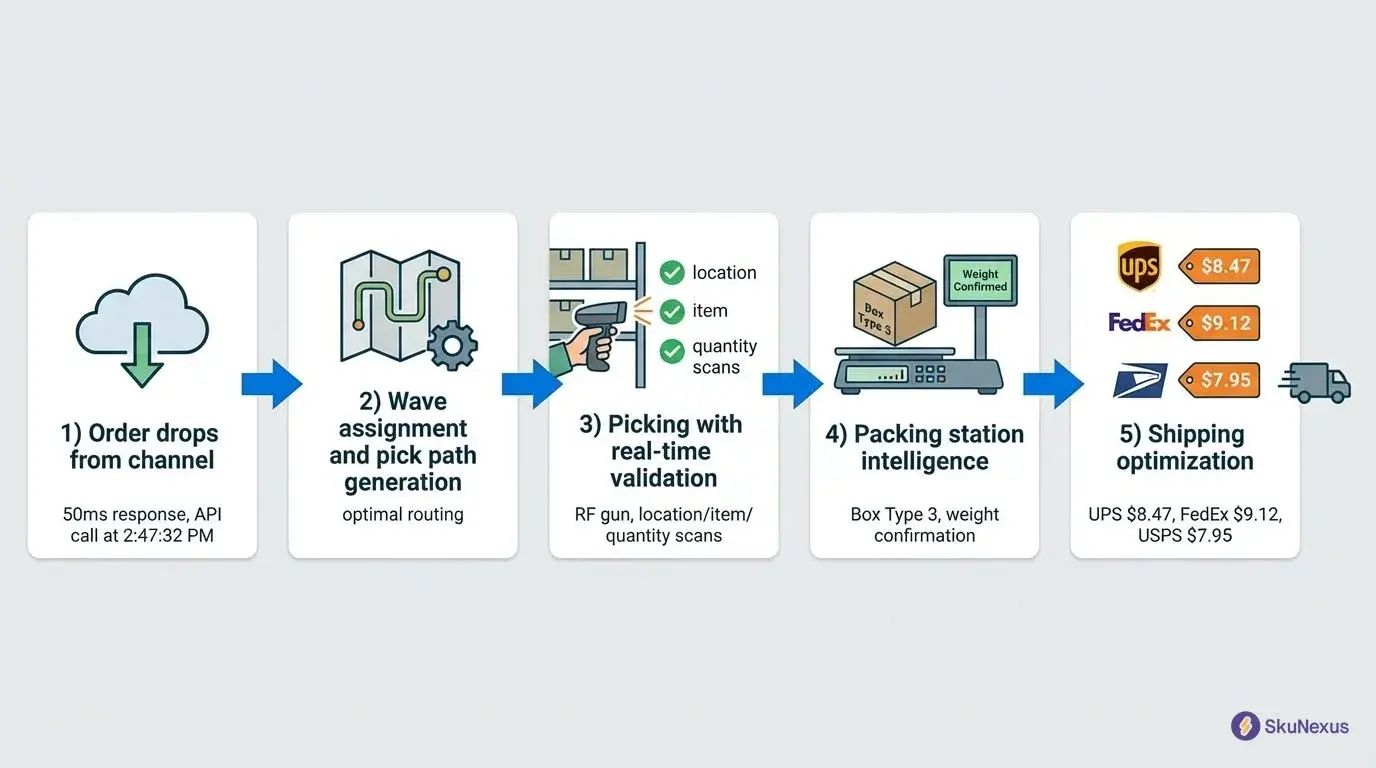
Apply barcode scanning across receiving, picking, packing, and shipping rather than in one spot; accuracy compounds when every touch is scanned.
Optimizing Reorder Points and Safety Stock Levels
Reorder points and safety stock levels help you avoid stockouts and overstock situations.
A reorder point is the stock level at which you trigger a new order. Safety stock is the extra inventory you keep on hand to cover unexpected demand or supply delays.
Calculate your reorder points based on lead time demand and your desired level of safety stock. For instance, if you sell 10 units per day and your lead time is 7 days, your reorder point might be 70 units plus safety stock.
Use SkuNexus to automate reorder points. The system can generate purchase orders when stock levels hit your predefined thresholds.
Multi-Channel Synchronization and Demand Planning
Multi-Channel Inventory Synchronization
Selling on multiple platforms is a logistical problem without proper synchronization. Multi-channel inventory synchronization ensures that your stock levels are accurate across all sales channels.
SkuNexus syncs your inventory between Shopify and other platforms like Amazon and eBay. A sale on one channel automatically updates the stock levels on all others: if you sell a product on your Shopify store, the inventory on your marketplace listings updates with it. No more overselling or manual updates.
Inventory Forecasting and Demand Planning
Inventory forecasting and demand planning keep you ahead of customer needs. By predicting future demand, you can ensure you have the right products in the right quantities.
SkuNexus analyzes historical sales data to surface trends, which helps you make informed decisions about ordering and stocking.
For example, if a product sells well during the holiday season, you can increase stock levels in advance. If it has seasonal dips, you can reduce orders to avoid excess inventory.
Review your demand forecasts regularly and adjust inventory levels accordingly, so you are prepared for changes in demand rather than reacting to them.
Troubleshooting Common Shopify Inventory Tracking Issues
Even with the best systems in place, inventory tracking can sometimes go wrong. Here is how to tackle the most common Shopify inventory tracking issues.
Identifying and Resolving Inventory Discrepancies
Inventory discrepancies are gaps between what your system says you have in stock and what you actually have. They can arise from human error, theft, or system glitches.
- Step 1: Regular Audits: Conduct regular inventory audits to catch discrepancies early. This involves comparing physical stock with system records.
- Step 2: Investigate Causes: If discrepancies are found, investigate their root causes. Look for patterns such as certain products frequently showing discrepancies.
- Step 3: Resolve Issues: Once you identify the cause, take corrective action. This might involve tightening security, improving employee training, or addressing system bugs.
Use SkuNexus to set up automated alerts for discrepancies, so issues are addressed before they escalate.
Handling Returns and Exchanges Efficiently
- Step 1: Streamlined Processes: Have a clear, streamlined process for handling returns and exchanges, so returned items are quickly checked, restocked, or sent for repair.
- Step 2: Update Inventory Immediately: As soon as a return is processed, update your inventory levels. Delays lead to discrepancies and stockouts.
- Step 3: Analyze Return Data: Track the reasons for returns and exchanges. Use this data to identify patterns and address underlying issues, such as product quality or description inaccuracies.
Ensuring Data Accuracy Across Systems
- Step 1: Sync Systems: Ensure all your systems - Shopify, SkuNexus, and any other platforms - are synced in real-time. This prevents data discrepancies and keeps everyone on the same page.
- Step 2: Regular Audits: Perform regular data audits to check for consistency across systems. Look for discrepancies and address them promptly.
- Step 3: Employee Training: Train your team on the importance of data accuracy. Make sure they understand how to enter data correctly and follow established procedures.
Where SkuNexus Fits in Shopify Inventory Tracking
SkuNexus sits on top of Shopify as the inventory and fulfillment layer. Shopify remains the storefront and the system of record for products and orders; SkuNexus becomes the system of record for stock, across every channel and location.
In practice that means:
- One stock number everywhere. Shopify, marketplaces, and wholesale channels all draw from the same real-time count.
- Location-aware fulfillment. Orders route to the warehouse, store, or vendor that should ship them, based on rules you define.
- Automated purchasing. Reorder points trigger purchase orders instead of after-the-fact restocking.
- Workflows that match your operation. Receiving, cycle counts, picking, packing, and shipping run through configurable workflows rather than fixed ones.
If you are comparing tools for this job, our guide to Shopify inventory management software walks through the criteria that matter.
SkuNexus Customer Results
Carewell Optimizes Branded Dropshipping Operations with SkuNexus
About Carewell: Carewell, an eCommerce retailer offering home health products, was born out of the CEO’s frustration with the disjointed online market for caregiving products. Their focus on customer service and a supportive community has driven their success.
The Situation: Carewell faced challenges as they grew:
- Needed seamless integration with their ecommerce platform.
- Required consistent data flow between Carewell and vendors/dropshippers.
- Aimed to improve order accuracy and customer satisfaction.
- Wanted the ability to easily add vendors/dropshippers.
- Sought a long-term relationship with a flexible software provider.
The Solution: SkuNexus provided a tailored solution:
- Integrated seamlessly with BigCommerce.
- Centralized vendor management to eliminate data flow inconsistencies.
- Automated purchase orders for dropshipping.
- Improved accuracy and efficiency through powerful order automation.
- Enhanced customer experience with real-time inventory visibility.
Results: Since implementing SkuNexus in 2020, Carewell has achieved significant milestones:
- Ranked #74 on Inc.’s 2021 5000 Fastest-Growing Private Companies in America.
- Improved vendor communication and data flow.
- Increased customer satisfaction through higher order accuracy.
“SkuNexus helps make our customer experience the best it can be!” - Bianca Padilla, CEO, Carewell
New Look Automates Fulfillment and Streamlines Order Management with SkuNexus
About New Look: New Look Vision Group Inc., Canada’s largest eyewear retailer, operates 477 locations across Canada and the United States. Their commitment to quality and service sets them apart.
The Situation: New Look’s rapid growth in eCommerce revealed the need for:
- Reducing order-processing times and improving accuracy.
- Automating fulfillment processes to increase efficiency.
- Seamlessly integrating their ecommerce platform with other systems.
The Process: Cyper, a digital transformation consultancy, conducted an audit and identified New Look’s needs. They required:
- Integration with Magento and other tech stack elements.
- Full automation of pick, pack, and ship processes.
- Flexibility to support New Look’s scaling business.
The Solution: SkuNexus provided the perfect fit:
- Seamlessly integrated with Magento 2 and other systems.
- Automated the entire fulfillment process.
- Provided a flexible, customizable OMS.
Results:
- Increased online sales.
- Improved pick, pack, and ship processes.
- Provided scalability for future growth.
“SkuNexus is a simple, clean, ‘best-of-breed’ solution with ‘straightforward UI/UX.’ Its modular quality makes customization efficient.” - Elena Pomazanova, President, Cyper
FAQs About Shopify Inventory Tracking
How do I track inventory on Shopify?
Open a product in your Shopify admin, turn on Track quantity for the product or each variant, set the inventory policy, and enter quantities per location. Shopify then counts stock down automatically as orders are placed.
How do I enable inventory tracking on Shopify?
Go to Products, open the product, find the Inventory section, and check Track quantity. Do this on each variant if the product has variants. To switch it on across many products at once, edit them from Products > Inventory or use a CSV import.
What does Shopify's inventory policy do?
It decides what happens when a tracked product reaches zero stock. Stop selling when out of stock marks it sold out so you cannot oversell; Continue selling when out of stock keeps it buyable for backorders or made-to-order items. It is set per variant.
Can I enable inventory tracking with a spreadsheet on Shopify?
Yes. Shopify supports a CSV import that lets you turn on tracking and set quantities for many products at once, instead of editing each product by hand. Export your products to CSV, set the tracking and quantity columns, and re-import.
Is Shopify good for inventory management?
Yes, Shopify is good for inventory management, especially for small to medium-sized businesses. It provides essential tools to track inventory, manage stock across multiple locations, and set up inventory alerts.
However, for more complex needs, integrating Shopify with a system like SkuNexus can offer enhanced functionality and automation.
Ready to see it live? Sign up for a Shopify inventory demo and we will show you how to sync stock across channels.
Ready to Transform Your Operations?
See how SkuNexus gives you full control over inventory, orders, warehouse, and shipping.
Schedule a Free Demo →
Yitz Lieblich
CEO & Founder, SkuNexus
Yitz Lieblich is the Founder and CEO of SkuNexus. He has spent 19 years in eCommerce, starting in 2007 when he founded Web Solutions NYC, an eCommerce agency he still leads today. His approach to inventory, order, and warehouse management did not come from a whiteboard. It came from the floor. Across nearly two decades, Yitz has worked with merchants of every size, from mom-and-pop startups to Fortune 100 enterprises, across auto parts, food and beverage, apparel, B2B wholesale, and retail/D2C. He has walked through hundreds of warehouses, watching where operations lose time, money, and orders, with one goal: optimize the operation and make it easier for the merchant. That hands-on pattern is what led him to build SkuNexus in 2018 as a full operational platform. The idea was simple. Configurable infrastructure that bends to each merchant workflow, supporting businesses that ship anywhere from 50 to 20,000 orders a day. A custom development background runs through everything he builds. When SkuNexus writes about fulfillment, WMS, or multi-channel inventory, it comes from operations Yitz has seen and solved firsthand. First as an agency partner since 2007, and now as the architect of the platform.
Keep Reading
WooCommerce Warehouse and Inventory Management
September 16, 2026